Tutorial

1

How to use the bot

Let's set up your personal bot. First, download it from the download page or from GitHub, then unzip it into any directory on your device.

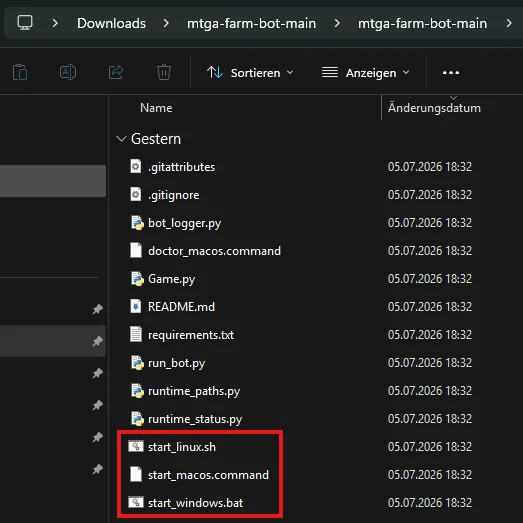
In the downloaded folder, find the file specific to your platform and double-click it to start the bot. It will now install the required binaries into a virtual environment.

Extracted bot folder with the start_windows.bat, start_macos.command, and start_linux.sh files highlighted

Wait until everything is installed. The bot should start automatically afterwards.

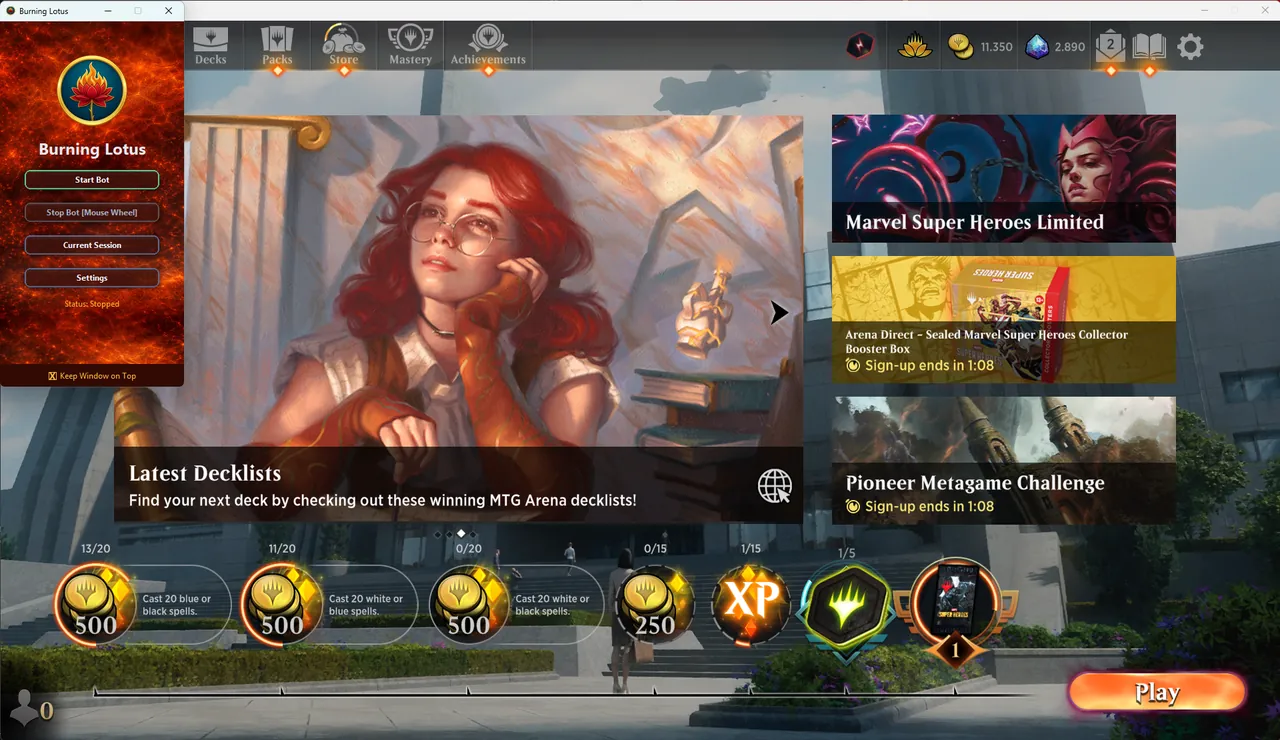
Burning Lotus bot interface with Start Bot, Stop Bot, Current Session, and Settings buttons

The first time you start the bot, you should see a notification with some instructions. Follow them carefully, and once everything is set up correctly, you'll be able to press the Start Bot button. Be aware that MTG Arena must already be open at this point.

2

Starter Deck mode

Choose your desired game mode. The default mode is “Starter Deck”, where the bot plays with the starter decks from Magic Arena, so you don't need any wildcards.

Then go back to the main menu and press Start Bot. The bot now plays autonomously, queuing for the next match on its own once a game ends. If you want the bot to play with the starter decks, choose Starter Deck mode and click the Start Bot button. The bot will then select a deck automatically.

3

Historic Play mode

The other game mode is “Historic”, where you can use the recommended decks and should reach a better win rate. You will also need to select a deck of your choice before starting the bot. Check out the Decks section to see which decks work well with the bot.

Building your own decks

If you want to build your own decks for the bot, keep in mind what it can and cannot play. The bot does not work out the rules for itself. It picks from the plays Magic Arena offers it, and that sets a hard limit on which cards actually do anything in its hands.

Works

  • Lands. One per turn, chosen by which casts it unlocks.
  • Creatures, instants, sorceries, enchantments, artifacts. Any spell it can pay for. Colors, cost reductions and Convoke are all checked.
  • Mana abilities. Including duals and utility lands.
  • Attacking and blocking. The bot only ever picks from the attacks and blocks Arena itself offers, so every evasion keyword works without the bot knowing it exists: Flying, Reach, Menace, Trample, First Strike, Deathtouch, “can't block”, Summoning Sickness.
  • Static and triggered abilities. They resolve by themselves, so nothing has to be clicked. Lords, ETB triggers, death triggers and anthem effects all work.
  • Removal. Targeted, only at creatures actually on the battlefield, with Ward cost priced against the mana left over.
  • Buff auras and pump spells. Only with one of your own creatures on the board.
  • Counterspells. The one reactive line: a counterable spell on the stack plus a payable counter in hand.
  • Lifegain payoffs. “Whenever you gain life, put a +1/+1 counter” creatures are deployed ahead of equal alternatives.
  • Kicker spells. Always cast without the kicker.
  • Search-your-library spells. The browser and the card-ordering window that follows are handled, for example Circuitous Route.
  • Scry and Surveil.

Two activated abilities, by name only

  • Phoenix Chick
  • Reassembling Skeleton

Does not work

  • Every other activated ability. Tap abilities, sacrifice outlets, Equip, Adapt, Level Up, Planeswalkers.
  • Instants at instant speed. Only counterspells are cast reactively, everything else is played in your own main phase.
  • Flash.
  • Modal spells chosen by situation. The bottom option is always taken.
  • Graveyard recursion worded “return a/an/one … from your graveyard”. It is skipped outright, because the chooser is not clickable.
  • A second copy of a legend already on your board.
  • Mulligans. The opening hand is always kept.
4

Automatic Account Switching (For Historic Mode)

This setup is only required for Historic mode. In Starter Deck mode you just configure the settings in the Account Switch menu and you are ready to go, without taking any screenshots yourself.

Manage Accounts

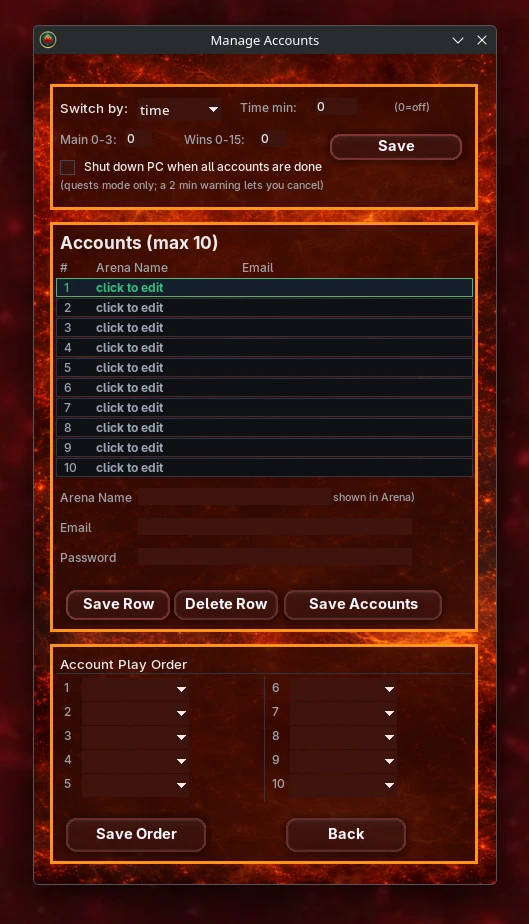
Open Settings → Manage Accounts in the bot's interface. Here you can choose whether the bot switches accounts by Time or by Quests. If you choose Time, set the interval after which the bot should switch to the next account, for example 15 min. If you choose Quests, set the number of quests the bot needs to finish before it switches accounts (choose 3 if you want it to finish all quests), and optionally the number of wins (0-15) it needs to reach first. Confirm your settings with the Save button.

Enter the accounts you want to run in the list below, then set the order in which they should be logged in at the bottom of the window.

Manage Accounts window showing timer, account list, and order configuration

Rename your decks by color

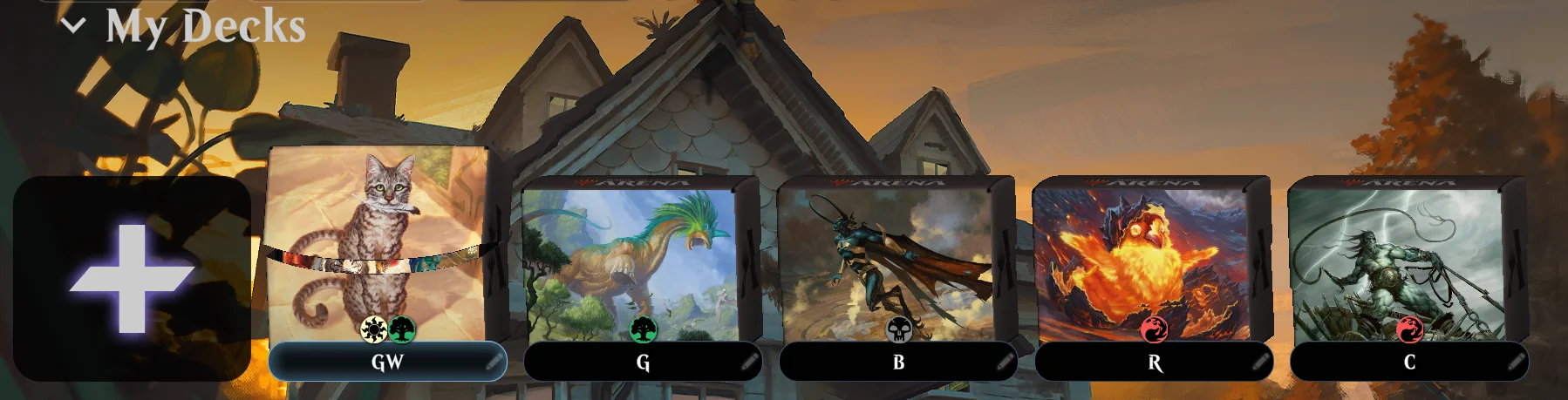
Open your decks in Magic Arena and rename each one using a color abbreviation. The bot uses these names to pick the right deck for the active color quest.

Black mana symbol
B
Blue mana symbol
U
Red mana symbol
R
White mana symbol
W
Green mana symbol
G
C
Creature
Multicolor decks list the colors in sequence. For example, RG = Red/Green. C is reserved for creatures-only decks used during the Creature Quest.
A deck in Magic Arena renamed using the color abbreviation scheme

Take a screenshot of each deck thumbnail

Capture each deck's thumbnail (as shown below) so the bot can visually recognize the deck on screen.

Example of a Magic Arena deck thumbnail captured as a screenshot

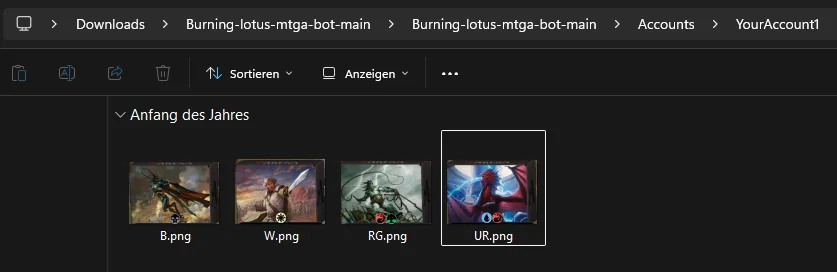
Save screenshots into the Accounts folder

Save each screenshot inside the Accounts folder, under a subfolder named after the matching account. Name each image the same way as the deck. For example, a Black deck is saved as B.png.

Accounts folder structure with per-account subfolders containing deck screenshots
5

Run the bot on a VM

You can run Magic Arena and the bot inside a virtual machine, so it plays in the background while you keep using your PC. The setup below was found and shared by our community.

Proven VM settings

These are not hard requirements. They are the settings one user ran the bot with successfully, so they are a good starting point. Other setups can work just as well.

  • Operating system. Windows 11 (64-bit).
  • Memory. About 9 GB (9012 MB) of base memory.
  • Processors. 6 virtual CPUs.
  • TPM. Version 2.0, required by Windows 11.
  • EFI and Secure Boot. Both enabled.
  • Acceleration. Nested Paging and Hyper-V paravirtualization enabled.

Hardware

No GPU passthrough is needed. On a host with a Ryzen 5 9600X, the VM running Windows 11, Magic Arena and the bot uses under 50% of the host CPU without any GPU acceleration.

Optional: route the VM through a VPN to keep it separated from your main machine.

Getting Forge to run on the VM

The Forge Engine is enabled by default. If it does not install inside the VM, install it on your host machine instead and copy it over:

  • Start the bot once on your host machine and let it download the Forge Engine.
  • Open the bot folder on the host and go to runtime/forge.
  • Copy that forge folder into the same place in the bot folder on your VM, so it ends up at runtime/forge there too.
Copy the folder from runtime/forge, not the root Forge folders. Only the copy inside runtime is picked up by the bot.
You're set up. Start the bot. It will run the configured accounts one after another, switching after the interval you set.